> ## Documentation Index
> Fetch the complete documentation index at: https://mcpjam-docs-update-from-inspector-pr-773.mintlify.site/llms.txt
> Use this file to discover all available pages before exploring further.
# LLM Playground
> Test your MCP server's behavior against various LLMs
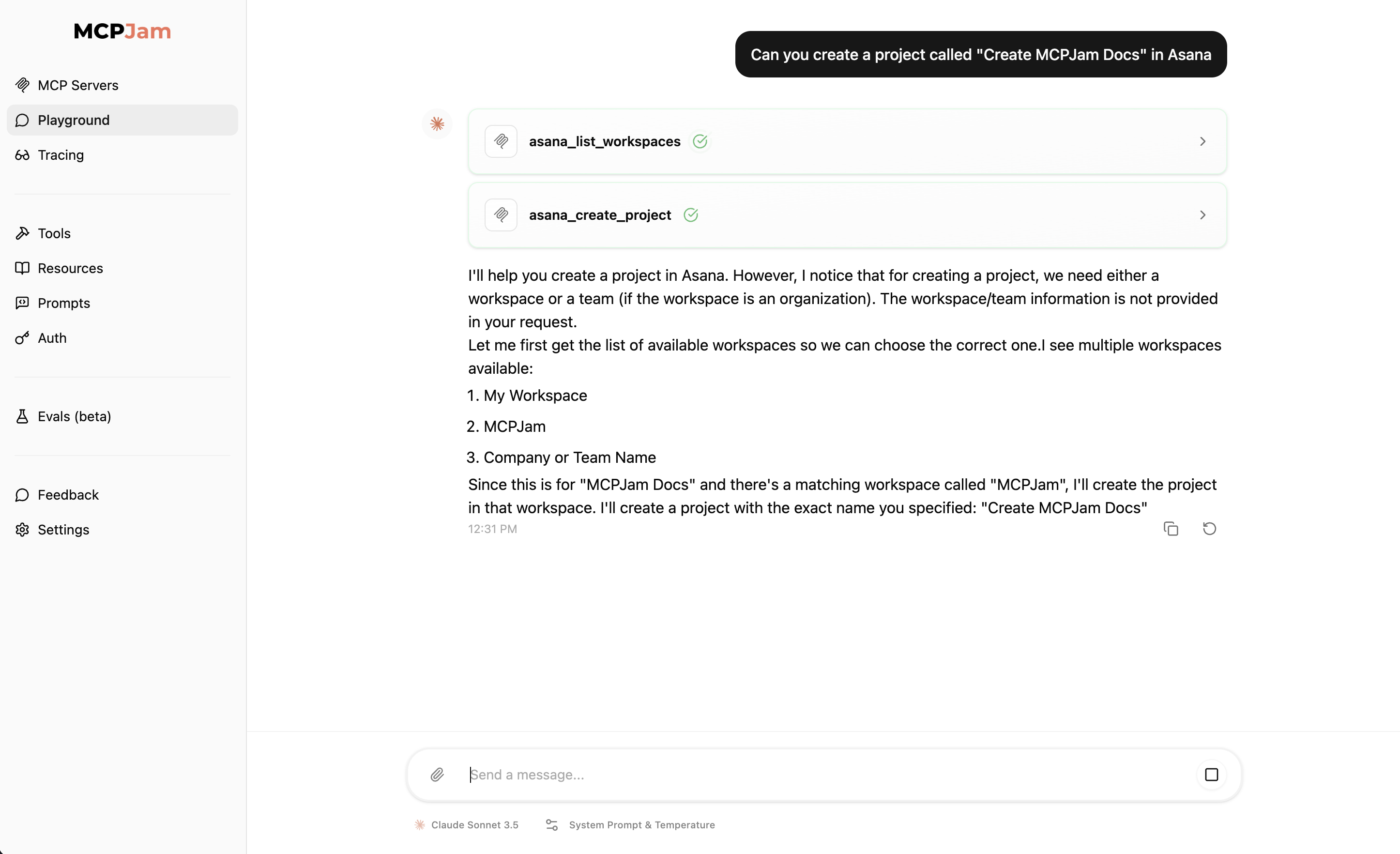
Use the LLM playground to test your server against different LLMs. This is helpful to simulate how LLMs interpret your server and test for hallucinations.
The playground is also great for simulating agent behaviors. You can customize the system prompt, swap models, and configure system prompts and temperature as if you would building an agent.
 ## Set up LLM Playground
You need to set up at least one LLM to use the playground. Go to the settings tab in the inspector and follow instructions from there.
### OpenAI
Get an API key from [OpenAI Platform](https://platform.openai.com/api-keys).
`gpt-4o`, `gpt-4o-mini`, `gpt-4-turbo`, `gpt-4`, `gpt-5`, `gpt-5-mini`, `gpt-5-nano`, `gpt-5-chat-latest`, `gpt-5-pro`, `gpt-5-codex`, `gpt-4.1`, `gpt-4.1-mini`, `gpt-4.1-nano`, `gpt-3.5-turbo`,`o3-mini`, `o3`, `o4-mini`, `o1`
GPT-5 models require organization verification. If you encounter access
errors, visit [OpenAI
Settings](https://platform.openai.com/settings/organization/general) and
verify your organization. Access may take up to 15 minutes after verification.
### Claude (Anthropic)
Get an API key from [Anthropic Console](https://console.anthropic.com/).
`claude-opus-4-0`, `claude-sonnet-4-0`, `claude-3-7-sonnet-latest`, `claude-3-5-sonnet-latest`, `claude-3-5-haiku-latest`
### Gemini
Get an API key from [Google AI Studio](https://aistudio.google.com/)
`gemini-2.5-pro`, `gemini-2.5-flash`, `gemini-2.5-flash-lite`, `gemini-2.0-flash-exp`, `gemini-1.5-pro`, `gemini-1.5-pro-002`, `gemini-1.5-flash`, `gemini-1.5-flash-002`, `gemini-1.5-flash-8b`, `gemini-1.5-flash-8b-001`, `gemma-3-2b`, `gemma-3-9b`, `gemma-3-27b`, `gemma-2-2b`, `gemma-2-9b`, `gemma-2-27b`, `codegemma-2b`, `codegemma-7b`
### Deepseek
Get an API key from [Deepseek Platform](https://platform.deepseek.com/)
`deepseek-chat`, `deepseek-reasoner`
### Mistral AI
Get an API key from [Mistral AI Console](https://console.mistral.ai/api-keys/)
`mistral-large-latest`, `mistral-small-latest`, `codestral-latest`, `ministral-8b-latest`, `ministral-3b-latest`
### OpenRouter
Get an API key from [OpenRouter Console](https://openrouter.ai/settings/keys)
Select from any tool-capable model in the dropdown.
### Ollama
Make sure you have [Ollama installed](https://ollama.com/), and the MCPJam Ollama URL configuration is pointing to your Ollama instance.
Start an Ollama instance with `ollama serve `. MCPJam will automatically detect any Ollama models running.
### LiteLLM Proxy
Use [LiteLLM Proxy](https://docs.litellm.ai/docs/proxy/quick_start) to connect to 100+ LLMs through a unified OpenAI-compatible interface.
1. **Start LiteLLM Proxy**: Follow the [LiteLLM Proxy Quick Start Guide](https://docs.litellm.ai/docs/proxy/quick_start) to set up your proxy server
2. **Configure in MCPJam**: Go to Settings → LiteLLM card → Click "Configure"
3. **Enter Connection Details**:
* **Base URL**: Your LiteLLM proxy URL (default: `http://localhost:4000`)
* **API Key**: Your proxy API key (use the same key you use in your API requests)
* **Model Aliases**: Comma-separated list of model names configured in your proxy (e.g., `gpt-3.5-turbo, claude-3-opus, gemini-pro`)
Use the exact model names that work with your LiteLLM proxy's
`/v1/chat/completions` endpoint. These are typically the model names without
provider prefixes (e.g., `gpt-3.5-turbo` instead of `openai/gpt-3.5-turbo`).
**Example configuration:**
```yaml theme={null}
# In your LiteLLM config.yaml
model_list:
- model_name: gpt-3.5-turbo
litellm_params:
model: openai/gpt-3.5-turbo
api_key: os.environ/OPENAI_API_KEY
```
Then in MCPJam, use `gpt-3.5-turbo` as the model alias.
## Choose an LLM model
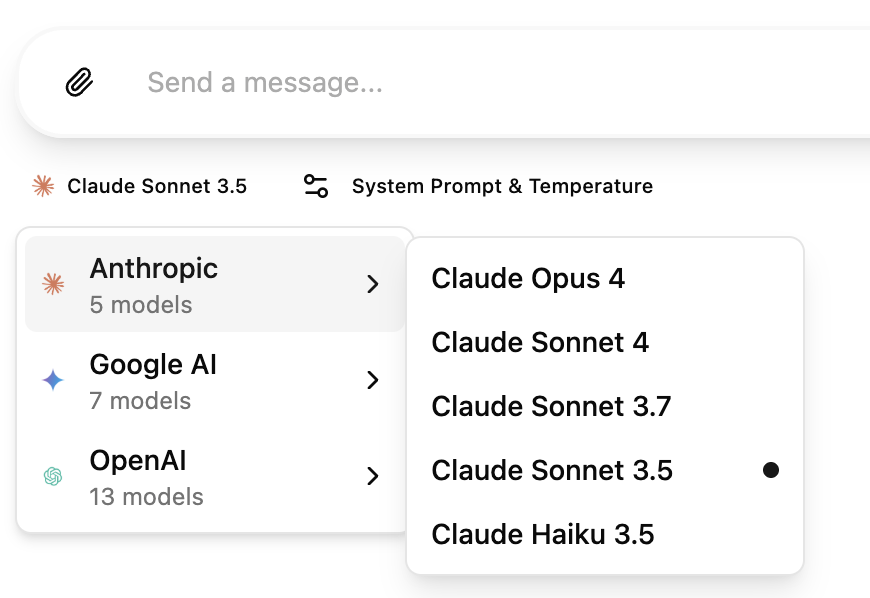
Once you've configured your LLM API keys, go to the Playground tab. On the bottom near the text input, you should see a LLM model selector. Select the model from the ones you've configured
## Set up LLM Playground
You need to set up at least one LLM to use the playground. Go to the settings tab in the inspector and follow instructions from there.
### OpenAI
Get an API key from [OpenAI Platform](https://platform.openai.com/api-keys).
`gpt-4o`, `gpt-4o-mini`, `gpt-4-turbo`, `gpt-4`, `gpt-5`, `gpt-5-mini`, `gpt-5-nano`, `gpt-5-chat-latest`, `gpt-5-pro`, `gpt-5-codex`, `gpt-4.1`, `gpt-4.1-mini`, `gpt-4.1-nano`, `gpt-3.5-turbo`,`o3-mini`, `o3`, `o4-mini`, `o1`
GPT-5 models require organization verification. If you encounter access
errors, visit [OpenAI
Settings](https://platform.openai.com/settings/organization/general) and
verify your organization. Access may take up to 15 minutes after verification.
### Claude (Anthropic)
Get an API key from [Anthropic Console](https://console.anthropic.com/).
`claude-opus-4-0`, `claude-sonnet-4-0`, `claude-3-7-sonnet-latest`, `claude-3-5-sonnet-latest`, `claude-3-5-haiku-latest`
### Gemini
Get an API key from [Google AI Studio](https://aistudio.google.com/)
`gemini-2.5-pro`, `gemini-2.5-flash`, `gemini-2.5-flash-lite`, `gemini-2.0-flash-exp`, `gemini-1.5-pro`, `gemini-1.5-pro-002`, `gemini-1.5-flash`, `gemini-1.5-flash-002`, `gemini-1.5-flash-8b`, `gemini-1.5-flash-8b-001`, `gemma-3-2b`, `gemma-3-9b`, `gemma-3-27b`, `gemma-2-2b`, `gemma-2-9b`, `gemma-2-27b`, `codegemma-2b`, `codegemma-7b`
### Deepseek
Get an API key from [Deepseek Platform](https://platform.deepseek.com/)
`deepseek-chat`, `deepseek-reasoner`
### Mistral AI
Get an API key from [Mistral AI Console](https://console.mistral.ai/api-keys/)
`mistral-large-latest`, `mistral-small-latest`, `codestral-latest`, `ministral-8b-latest`, `ministral-3b-latest`
### OpenRouter
Get an API key from [OpenRouter Console](https://openrouter.ai/settings/keys)
Select from any tool-capable model in the dropdown.
### Ollama
Make sure you have [Ollama installed](https://ollama.com/), and the MCPJam Ollama URL configuration is pointing to your Ollama instance.
Start an Ollama instance with `ollama serve `. MCPJam will automatically detect any Ollama models running.
### LiteLLM Proxy
Use [LiteLLM Proxy](https://docs.litellm.ai/docs/proxy/quick_start) to connect to 100+ LLMs through a unified OpenAI-compatible interface.
1. **Start LiteLLM Proxy**: Follow the [LiteLLM Proxy Quick Start Guide](https://docs.litellm.ai/docs/proxy/quick_start) to set up your proxy server
2. **Configure in MCPJam**: Go to Settings → LiteLLM card → Click "Configure"
3. **Enter Connection Details**:
* **Base URL**: Your LiteLLM proxy URL (default: `http://localhost:4000`)
* **API Key**: Your proxy API key (use the same key you use in your API requests)
* **Model Aliases**: Comma-separated list of model names configured in your proxy (e.g., `gpt-3.5-turbo, claude-3-opus, gemini-pro`)
Use the exact model names that work with your LiteLLM proxy's
`/v1/chat/completions` endpoint. These are typically the model names without
provider prefixes (e.g., `gpt-3.5-turbo` instead of `openai/gpt-3.5-turbo`).
**Example configuration:**
```yaml theme={null}
# In your LiteLLM config.yaml
model_list:
- model_name: gpt-3.5-turbo
litellm_params:
model: openai/gpt-3.5-turbo
api_key: os.environ/OPENAI_API_KEY
```
Then in MCPJam, use `gpt-3.5-turbo` as the model alias.
## Choose an LLM model
Once you've configured your LLM API keys, go to the Playground tab. On the bottom near the text input, you should see a LLM model selector. Select the model from the ones you've configured
 ## System prompt and temperature
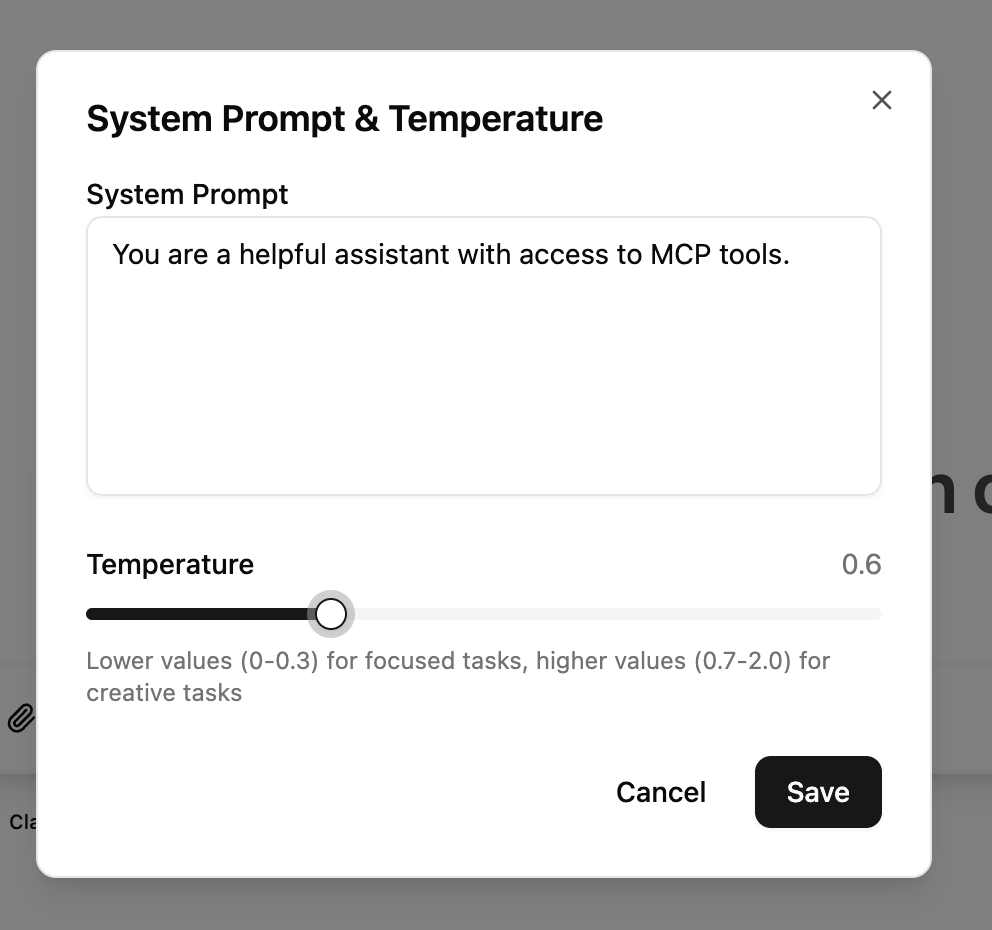
You can configure the system prompt and temperature, just like you would building an agent. The temperature is defaulted to the default value of the LLM providers (Claude = 0, OpenAI = 1.0).
Higher temperature settings tend to hallucinate more with MCP interactions
## System prompt and temperature
You can configure the system prompt and temperature, just like you would building an agent. The temperature is defaulted to the default value of the LLM providers (Claude = 0, OpenAI = 1.0).
Higher temperature settings tend to hallucinate more with MCP interactions
 ## Elicitation support
MCPJam has elicitation support in the LLM playground. Any elicitation requests will be shown as a popup modal.
## OpenAI Apps SDK support
The playground supports rendering custom UI components from MCP tools using the [OpenAI Apps SDK](https://developers.openai.com/apps-sdk). When a tool includes an `openai/outputTemplate` metadata field pointing to a resource URI, the playground will render the custom HTML interface in an isolated iframe with access to the `window.openai` API.
This enables MCP servers to provide rich, interactive visualizations for tool results, including charts, forms, and custom widgets that can call other tools or send followup messages to the chat.
## Elicitation support
MCPJam has elicitation support in the LLM playground. Any elicitation requests will be shown as a popup modal.
## OpenAI Apps SDK support
The playground supports rendering custom UI components from MCP tools using the [OpenAI Apps SDK](https://developers.openai.com/apps-sdk). When a tool includes an `openai/outputTemplate` metadata field pointing to a resource URI, the playground will render the custom HTML interface in an isolated iframe with access to the `window.openai` API.
This enables MCP servers to provide rich, interactive visualizations for tool results, including charts, forms, and custom widgets that can call other tools or send followup messages to the chat.